Use an Instance as a NAT Gateway
In this recipe, an instance of your VPC acts as a NAT gateway for the other instances of its Subnet. Traffic they send to an external network is routed to the gateway, which replaces their source address with its own public IP before sending it on. External hosts only ever see the gateway’s public IP and can’t open connections back to the instances behind it.
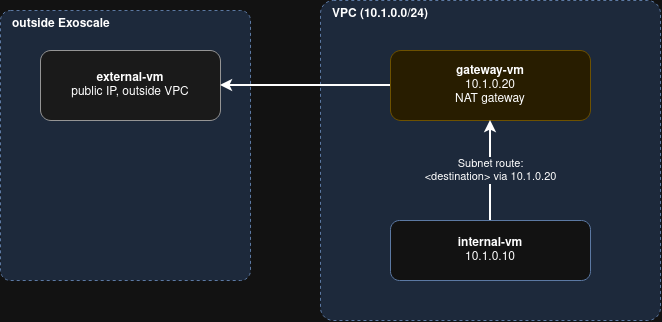
The setup uses three instances:
internal-vmis attached to the VPC Subnet and reaches the external network through the gateway.gateway-vmis attached to the VPC Subnet and translates the addresses.external-vmstands for the external network. It’s not attached to the VPC. It can also be a machine outside of Exoscale, as long asgateway-vmcan reach it.
The VPC side is configured with the exo CLI. Only the forwarding and address translation on the
gateway are configured inside the instance, with standard Linux tools.
Before You Start
You need:
- The Exoscale CLI, configured with
exo config. - An SSH key registered in your Exoscale account.
Set the following variables in your shell. The commands below refer to them:
export ZONE=ch-dk-2
export SSH_KEY=your-ssh-key-in-exoscale
export SG=allow-ssh-from-any
export VPC_CIDR=10.1.0.0/24
Step 1: Create the VPC and Subnet
exo networking vpc create my-vpc -z $ZONE
exo networking vpc subnet create my-vpc my-subnet -z $ZONE \
    --ipv4-block $VPC_CIDR --address-family inet4 --address-space private
Step 2: Create the Instances
Create a Security Group that allows SSH, then create internal-vm and external-vm:
exo compute security-group create $SG
exo compute security-group rule add $SG \
    --flow ingress --protocol tcp --port 22 --network 0.0.0.0/0

exo compute instance create internal-vm \
    --ssh-key $SSH_KEY --security-group $SG -z $ZONE
exo compute instance create external-vm \
    --ssh-key $SSH_KEY --security-group $SG -z $ZONE
Create gateway-vm with VPC IP forwarding enabled
exo compute instance create gateway-vm --ip-forwarding \
    --ssh-key $SSH_KEY --security-group $SG -z $ZONE
Step 3: Attach the Instances to the Subnet
Attach gateway-vm and internal-vm to the Subnet. external-vm stays outside of the VPC and only
talks to the gateway over its public IP.
$ exo compute instance attach-to-subnet gateway-vm my-vpc my-subnet -z $ZONE
$ exo compute instance attach-to-subnet internal-vm my-vpc my-subnet -z $ZONE
Step 4: Allow the Traffic in Security Groups
The $SG Security Group only allows SSH. Add two more Security Groups:
internal-gateway-sgallows all traffic betweengateway-vmandinternal-vminside the VPC.gateway-external-sgallows all traffic between the public IPs ofgateway-vmandexternal-vm.
Each one allows all traffic from the other members of the group:
exo compute security-group create internal-gateway-sg
exo compute security-group rule add internal-gateway-sg \
    --flow ingress --protocol all --security-group internal-gateway-sg
exo compute instance security-group add gateway-vm internal-gateway-sg -z $ZONE
exo compute instance security-group add internal-vm internal-gateway-sg -z $ZONE

exo compute security-group create gateway-external-sg
exo compute security-group rule add gateway-external-sg \
    --flow ingress --protocol all --security-group gateway-external-sg
exo compute instance security-group add gateway-vm gateway-external-sg -z $ZONE
exo compute instance security-group add external-vm gateway-external-sg -z $ZONE
In production, narrow these rules down to the protocols and ports your workload needs.
Step 5: Note the Addresses
Look up the public IP and the VPC address of each instance:
exo compute instance show internal-vm -z $ZONE
exo compute instance show gateway-vm -z $ZONE
exo compute instance show external-vm -z $ZONE
Save them as variables:
export GATEWAY_VPC_IP=<gateway-vm-vpc-ip>     # 10.1.0.20 in the diagram
export INTERNAL_VPC_IP=<internal-vm-vpc-ip>   # 10.1.0.10 in the diagram
export INT_PUB=<internal-vm-public-ip>
export GW_PUB=<gateway-vm-public-ip>
export EXT_PUB=<external-vm-public-ip>
export EXT_CIDR=$EXT_PUB/32   # the external range to reach through the gateway
Tip
If you exported all the variables mentioned above you can connect to the VMs with
ssh ubuntu@$INT_PUB, ssh ubuntu@$GW_PUB and ssh ubuntu@$EXT_PUB respectively.
Step 6: Configure the VPC Network Interfaces
The new network interface (created in step 3) of each instance gets its address through DHCP.
Some operating systems may not configure this automatically. In that case, connect to gateway-vm and
internal-vm over SSH and start the DHCP client on the VPC interface yourself, for example on
Ubuntu 22.04:
sudo dhclient eth1
Step 7: Configure the Gateway Instance
Connect to gateway-vm with ssh ubuntu@$GW_PUB. Enable forwarding in the operating system, so
that the kernel routes packets between its interfaces, and keep the setting across reboots:
# on gateway-vm
sudo sysctl -w net.ipv4.ip_forward=1
echo 'net.ipv4.ip_forward=1' | sudo tee /etc/sysctl.d/99-forwarding.conf
Find the public interface, usually eth0, then add a masquerading rule. Traffic from
internal-vm leaving through this interface gets the gateway’s own address as its source:
# on gateway-vm
sudo iptables -t nat -A POSTROUTING -o eth0 -j MASQUERADE
This rule is lost when the instance reboots. Persist it with the mechanism of your operating
system, for example the iptables-persistent package on Ubuntu.
Step 8: Route the Traffic Through the Gateway
Add a Subnet route that sends the traffic for the external network to gateway-vm. $EXT_CIDR is the
range you need to reach, here only external-vm:
exo networking vpc route create my-vpc -z $ZONE \
    --subnet my-subnet \
    --destination $EXT_CIDR \
    --target ip=$GATEWAY_VPC_IP \
    --description "internal-vm to external network via gateway-vm"
The platform doesn’t push this route to the instances of the Subnet. The operating system of
internal-vm still sends this traffic through its public interface, so add a matching route through
its VPC interface, with the same destination. The next hop is the Subnet gateway, the second address
of the Subnet (10.1.0.1 here). The platform then applies the Subnet route and delivers the packets
to gateway-vm:
# on internal-vm
sudo ip route add $EXT_CIDR via 10.1.0.1 dev eth1
This route is also lost when the instance reboots. Persist it in the network configuration of the instance, for example with netplan on Ubuntu.
Warning
Be careful when the destination is broad, for example 0.0.0.0/0 to reach the whole internet.
A default route through the VPC interface replaces the one through the public interface of
internal-vm, and connections to its public IP, including your SSH session, stop working.
Step 9: Test the Setup
From internal-vm, reach external-vm.
ubuntu@internal-vm:~$ ping $EXT_PUB
If the ping gets no reply, check that:
gateway-vmwas created with--ip-forwardingandnet.ipv4.ip_forwardis1.- The masquerading rule is present:
sudo iptables -t nat -L POSTROUTING -v -n. ip route get $EXT_PUBoninternal-vmshowseth1as the interface.gateway-vmcan reachexternal-vmdirectly withping $EXT_PUB.