Connect a VPC to an External Network with WireGuard
In this recipe, an instance of your VPC acts as a router between its Subnet and an external network. It connects to a host of the external network over a WireGuard tunnel, which gives a routed link over the public internet. Traffic flows in both directions and keeps its original source addresses: the external network can open connections to the instances of the VPC, and sees their VPC addresses.
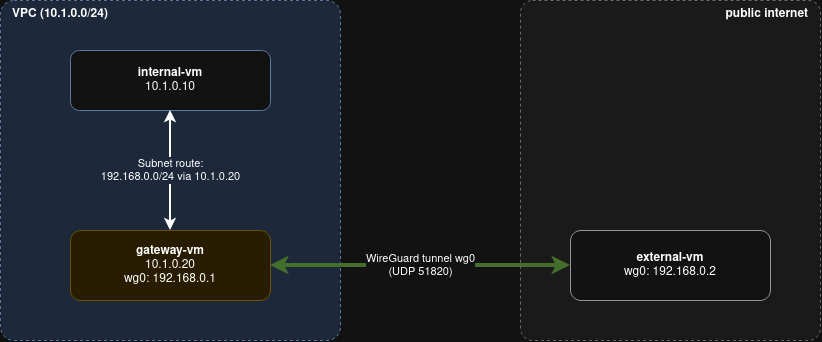
The setup uses three instances:
internal-vmis attached to the VPC Subnet.gateway-vmis attached to the VPC Subnet and routes traffic between the VPC and the tunnel.external-vmis the other end of the tunnel and stands for the external network. It’s not attached to the VPC. It can also be a machine outside of Exoscale, for example a router in your office, as long as it can reach the public IP ofgateway-vm.
The VPC side is configured with the exo CLI. The tunnel and the forwarding are configured inside
the instances.
Tip
Of course this setup is also possible without a wireguard tunnel. The point is to connect two networks together and have each be able to reach the other.
Before You Start
You need:
- The Exoscale CLI, configured with
exo config. - An SSH key registered in your Exoscale account.
Set the following variables in your shell. The commands below refer to them:
export ZONE=ch-dk-2
export SSH_KEY=your-ssh-key-in-exoscale
export SG=allow-ssh-from-any
export VPC_CIDR=10.1.0.0/24

export WG_CIDR=192.168.0.0/24
export WG_PORT=51820
export WG_GATEWAY_IP=192.168.0.1
export WG_EXTERNAL_IP=192.168.0.2
The tunnel addresses are arbitrary, but $WG_CIDR must not overlap with $VPC_CIDR.
Step 1: Create the VPC and Subnet
exo networking vpc create my-vpc -z $ZONE
exo networking vpc subnet create my-vpc my-subnet -z $ZONE \
    --ipv4-block $VPC_CIDR --address-family inet4 --address-space private
Step 2: Create the Instances
Create a Security Group that allows SSH, then create internal-vm and external-vm:
exo compute security-group create $SG
exo compute security-group rule add $SG \
    --flow ingress --protocol tcp --port 22 --network 0.0.0.0/0

exo compute instance create internal-vm \
    --ssh-key $SSH_KEY --security-group $SG -z $ZONE
exo compute instance create external-vm \
    --ssh-key $SSH_KEY --security-group $SG -z $ZONE
Create gateway-vm with VPC IP forwarding enabled. The gateway forwards packets from other hosts
with their original source address, and without this setting the platform drops them. It can only
be chosen when the instance is created:
exo compute instance create gateway-vm --ip-forwarding \
    --ssh-key $SSH_KEY --security-group $SG -z $ZONE
Step 3: Attach the Instances to the Subnet
Attach gateway-vm and internal-vm to the Subnet. external-vm stays outside of the VPC and only
talks to the gateway through the tunnel.
exo compute instance attach-to-subnet gateway-vm my-vpc my-subnet -z $ZONE
exo compute instance attach-to-subnet internal-vm my-vpc my-subnet -z $ZONE
Step 4: Allow the Traffic in Security Groups
Traffic between gateway-vm and internal-vm inside the VPC. Create a Security Group that
allows all traffic between its members:
exo compute security-group create internal-gateway-sg
exo compute security-group rule add internal-gateway-sg \
    --flow ingress --protocol all --security-group internal-gateway-sg
exo compute instance security-group add gateway-vm internal-gateway-sg -z $ZONE
exo compute instance security-group add internal-vm internal-gateway-sg -z $ZONE
The tunnel itself, UDP port $WG_PORT between the public IPs of gateway-vm and
external-vm:
exo compute security-group create wg-tunnel-sg
exo compute security-group rule add wg-tunnel-sg \
    --flow ingress --protocol udp --port $WG_PORT --security-group wg-tunnel-sg
exo compute instance security-group add gateway-vm wg-tunnel-sg -z $ZONE
exo compute instance security-group add external-vm wg-tunnel-sg -z $ZONE
If external-vm is outside of Exoscale, it can’t join the Security Group. Allow its public IP
with --network <external-public-ip>/32 instead, and open the port in its own firewall.
Traffic arriving through the tunnel. Packets from external-vm reach internal-vm with a
source address in $WG_CIDR, not from a member of internal-gateway-sg, so the rules above don’t
match them:
exo compute security-group rule add internal-gateway-sg \
    --flow ingress --protocol all --network $WG_CIDR
In production, narrow these rules down to the protocols and ports your workload needs.
Step 5: Note the Addresses
Look up the public IP and the VPC address of each instance:
exo compute instance show internal-vm -z $ZONE
exo compute instance show gateway-vm -z $ZONE
exo compute instance show external-vm -z $ZONE
Save them as variables:
export GATEWAY_VPC_IP=<gateway-vm-vpc-ip>     # 10.1.0.20 in the diagram
export INTERNAL_VPC_IP=<internal-vm-vpc-ip>   # 10.1.0.10 in the diagram
export INT_PUB=<internal-vm-public-ip>
export GW_PUB=<gateway-vm-public-ip>
export EXT_PUB=<external-vm-public-ip>
Tip
If you exported all the variables mentioned above you can connect to the VMs with
ssh ubuntu@$INT_PUB, ssh ubuntu@$GW_PUB and ssh ubuntu@$EXT_PUB respectively.
Step 6: Configure the VPC Network Interfaces
The new network interface (created in step 3) of each instance gets its address through DHCP.
Some operating systems may not configure this automatically. In that case, connect to gateway-vm and
internal-vm over SSH and start the DHCP client on the VPC interface yourself, for example on
Ubuntu 22.04:
sudo dhclient eth1
Step 7: Install WireGuard and Generate Keys
On both gateway-vm and external-vm, install WireGuard and generate a key pair:
sudo apt-get update && sudo apt-get install -y wireguard
wg genkey | sudo tee /etc/wireguard/private.key | wg pubkey | sudo tee /etc/wireguard/public.key
sudo chmod 600 /etc/wireguard/private.key
Print the public key of each side and note it down. Each side’s configuration needs the public key of the other:
sudo cat /etc/wireguard/public.key
Step 8: Configure the Gateway Side
On gateway-vm, enable forwarding in the operating system and keep the setting across reboots:
# on gateway-vm
sudo sysctl -w net.ipv4.ip_forward=1
echo 'net.ipv4.ip_forward=1' | sudo tee /etc/sysctl.d/99-forwarding.conf
Create /etc/wireguard/wg0.conf. The addresses and the port match $WG_GATEWAY_IP,
$WG_EXTERNAL_IP and $WG_PORT:
[Interface]
Address = 192.168.0.1/24
ListenPort = 51820
PrivateKey = <gateway-vm-private-key>

[Peer]
# external-vm
PublicKey = <external-vm-public-key>
Endpoint = <external-vm-public-ip>:51820
AllowedIPs = 192.168.0.2/32
AllowedIPs acts as the routing table of WireGuard. It adds a route to 192.168.0.2/32 through
wg0, and only accepts packets from the peer whose source address is in this list. If more
networks sit behind external-vm, add their ranges here.
The gateway must forward packets between the VPC interface (eth1) and the tunnel:
# on gateway-vm
sudo iptables -A FORWARD -i eth1 -o wg0 -j ACCEPT
sudo iptables -A FORWARD -i wg0 -o eth1 -j ACCEPT
These rules are lost when the instance reboots. Persist them with the mechanism of your operating
system, for example the iptables-persistent package on Ubuntu.
Step 9: Configure the External Side
On external-vm, create /etc/wireguard/wg0.conf:
[Interface]
Address = 192.168.0.2/24
ListenPort = 51820
PrivateKey = <external-vm-private-key>

[Peer]
# gateway-vm, and the VPC Subnet behind it
PublicKey = <gateway-vm-public-key>
Endpoint = <gateway-vm-public-ip>:51820
AllowedIPs = 192.168.0.1/32, 10.1.0.0/24
The 10.1.0.0/24 entry ($VPC_CIDR) makes internal-vm reachable from external-vm. It adds a
route to the VPC Subnet through wg0, and accepts packets with a source address in the Subnet.
Step 10: Bring the Tunnel Up
On both gateway-vm and external-vm, start the tunnel and enable it at boot:
sudo systemctl enable --now wg-quick@wg0
Check that a handshake happened and that the transfer counters aren’t zero, then check the routes:
sudo wg show
ip route show dev wg0
From gateway-vm, ping $WG_EXTERNAL_IP now gets replies.
Step 11: Route the Tunnel Network Through the Gateway
Add a Subnet route that sends the traffic for the tunnel network to gateway-vm:
exo networking vpc route create my-vpc -z $ZONE \
    --subnet my-subnet \
    --destination $WG_CIDR \
    --target ip=$GATEWAY_VPC_IP \
    --description "tunnel network via gateway-vm"
The platform doesn’t push this route to the instances of the Subnet. The operating system of
internal-vm still sends this traffic through its public interface, so add a matching route through
its VPC interface, with the same destination. The next hop is the Subnet gateway, the second address
of the Subnet (10.1.0.1 here). The platform then applies the Subnet route and delivers the packets
to gateway-vm:
# on internal-vm
sudo ip route add $WG_CIDR via 10.1.0.1 dev eth1
This route is lost when the instance reboots. Persist it in the network configuration of the instance, for example with netplan on Ubuntu.
Both directions need this route: internal-vm uses it to send traffic to external-vm, and to
reply to connections opened by external-vm.
Step 12: Test Both Directions
From internal-vm you can reach external-vm:
ubuntu@internal-vm:~$ ping $WG_EXTERNAL_IP
From external-vm you can reach internal-vm:
ubuntu@external-vm:~$ ping $INTERNAL_VPC_IP
If the traffic doesn’t get through, check that:
gateway-vmwas created with--ip-forwardingandnet.ipv4.ip_forwardis1.sudo wg showreports a recent handshake on both sides.ip route get $WG_EXTERNAL_IPoninternal-vmshowseth1as the interface.- The
AllowedIPsof each side list every address the other side sends from.